Key Takeaways
- To find the default gateway on Windows, open Command Prompt and type ‘ipconfig’ to see the information.
- On Mac OS, access System Preferences, find your current connection, and click ‘Details…’ to see the default gateway.
- Linux users can find the default gateway by using the command ‘ip route | grep default’ in a terminal.
- Once you have the default gateway IP, enter it in a web browser to access your router settings.
- If you cannot find the router’s username and password, search online using the router’s make and model.
- Open “Command Prompt”
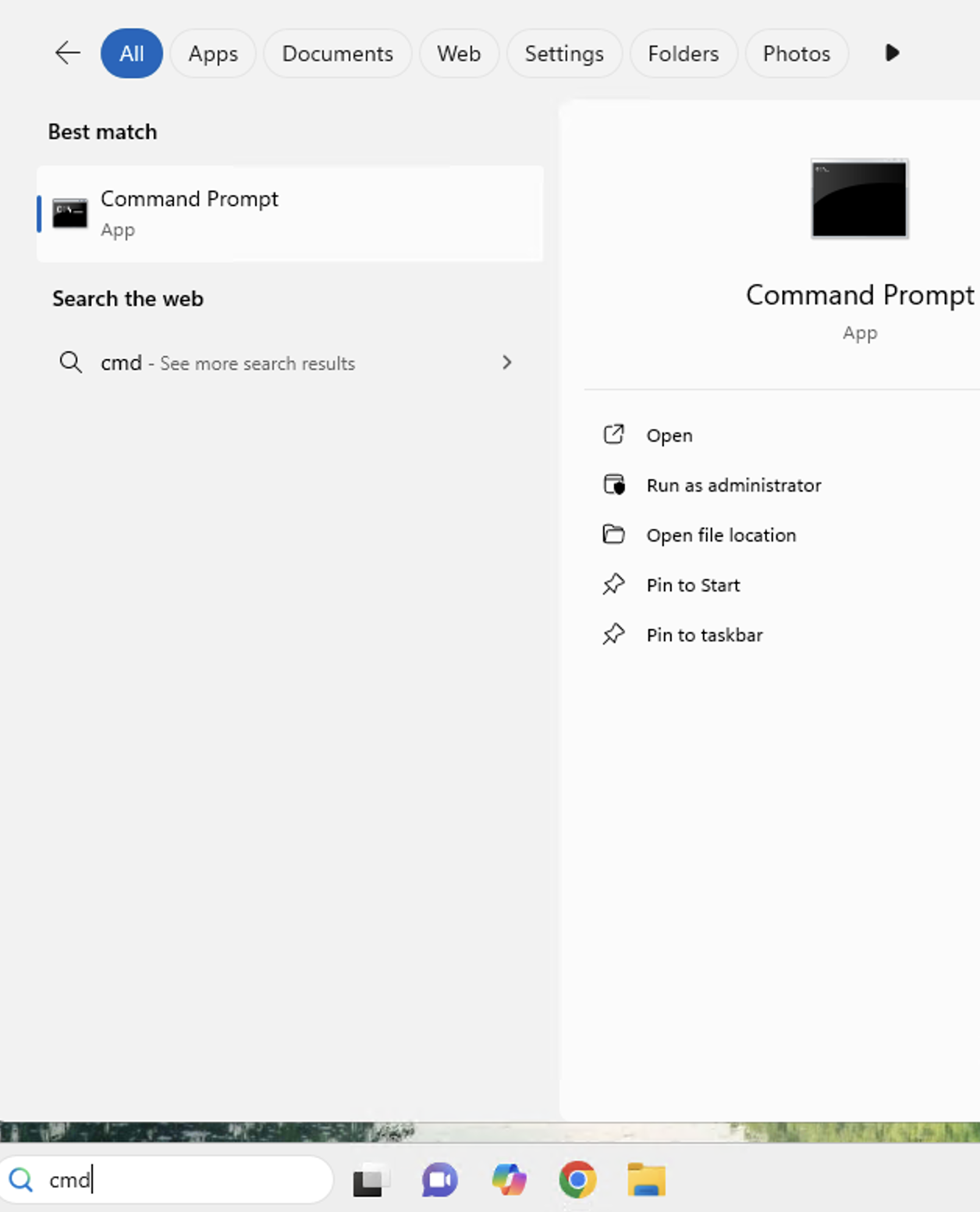
If you are using a Windows-based computer, you simply need to access a Command Prompt to find out what the Default Gateway is. To access a Command Prompt, click on the Start menu button and search for CMD. Click to open.
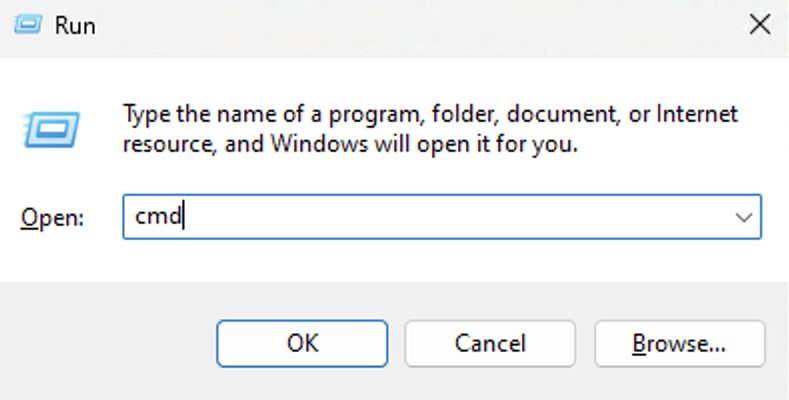
 If you are having a difficult time locating the Command Prompt using the start menu you can press the Windows Key on your keyboard while also pressing the R key. This will bring up the Run Menu. Now you can simply type CMD and click OK.
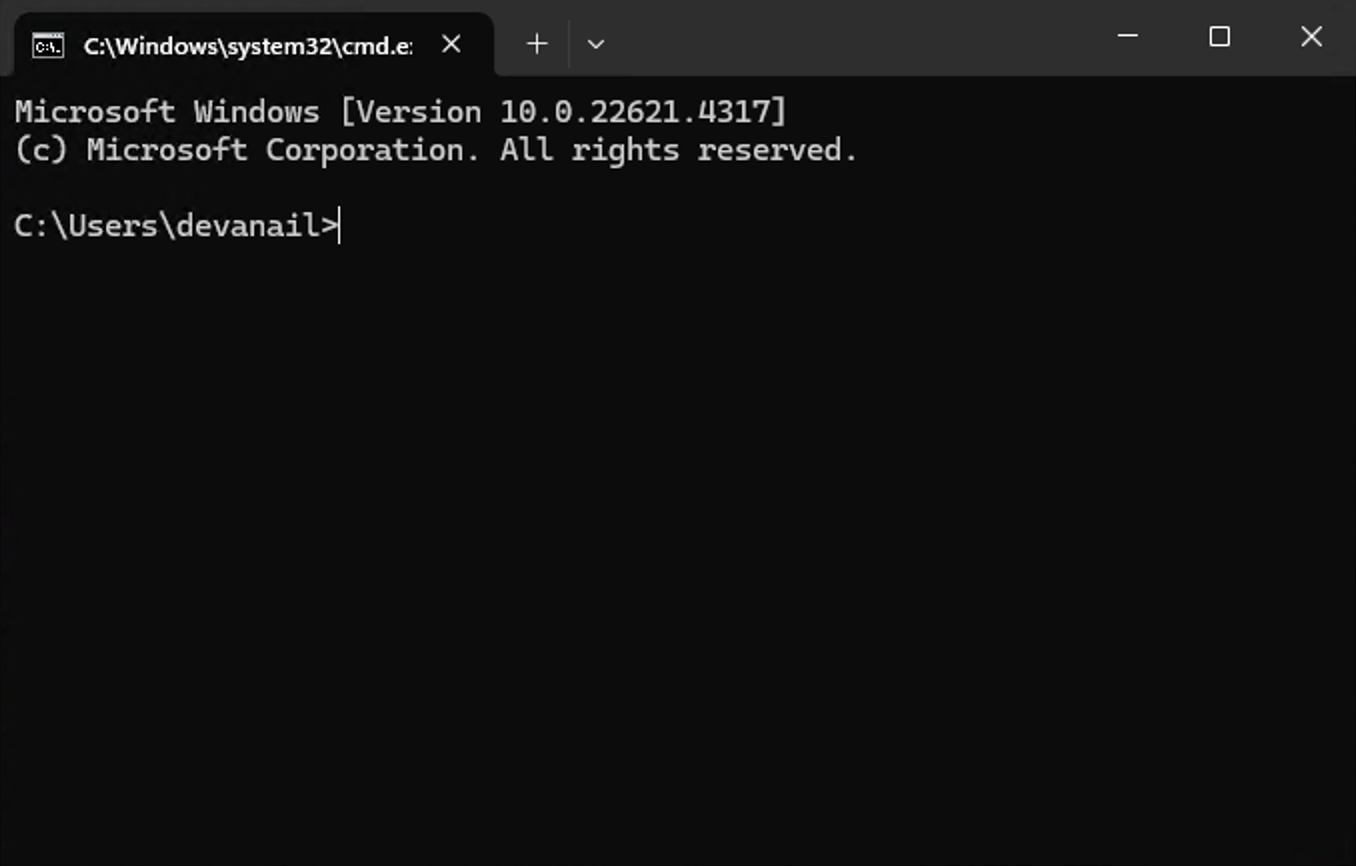
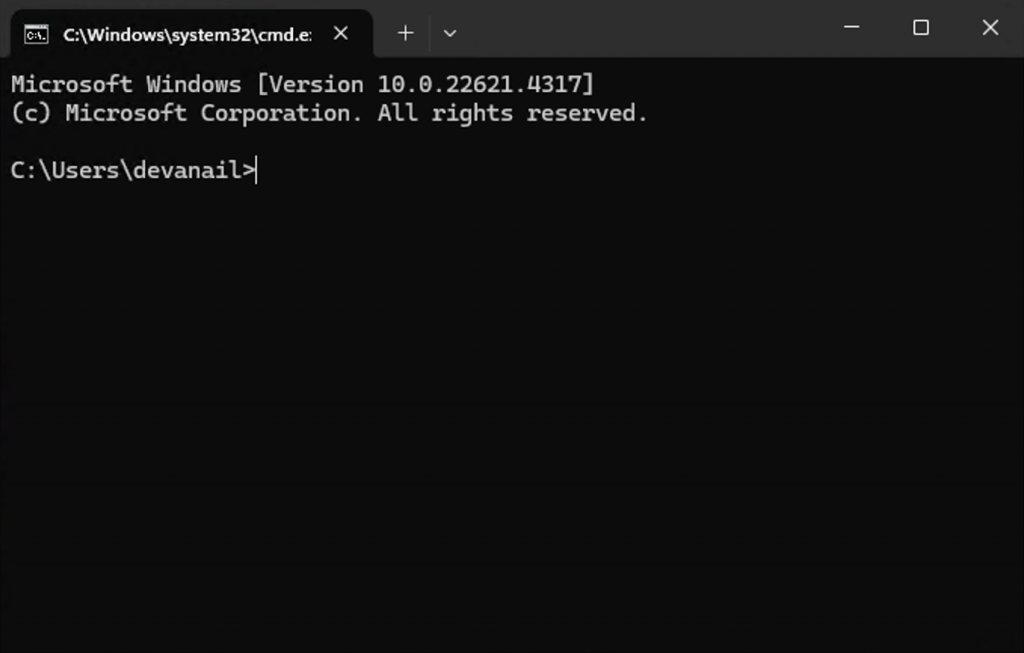
 After opening the Command Prompt you should see a small black window like the one below.
- Open “ipconfig”
In the Command Prompt window, type ipconfig and press Enter/Return on your keyboard. You will see a lot of information generated in this window. If you scroll up you should see “Default Gateway” with the device’s IP address listed to the right of it.

Finding Your Default Gateway on Mac OS
- Access System Preferences
First, click the Apple icon in the top left corner and select System Settings.
- Find Your Current Connection and IP Information
Click Wi-Fi or Network and find your current connection, then click Details…
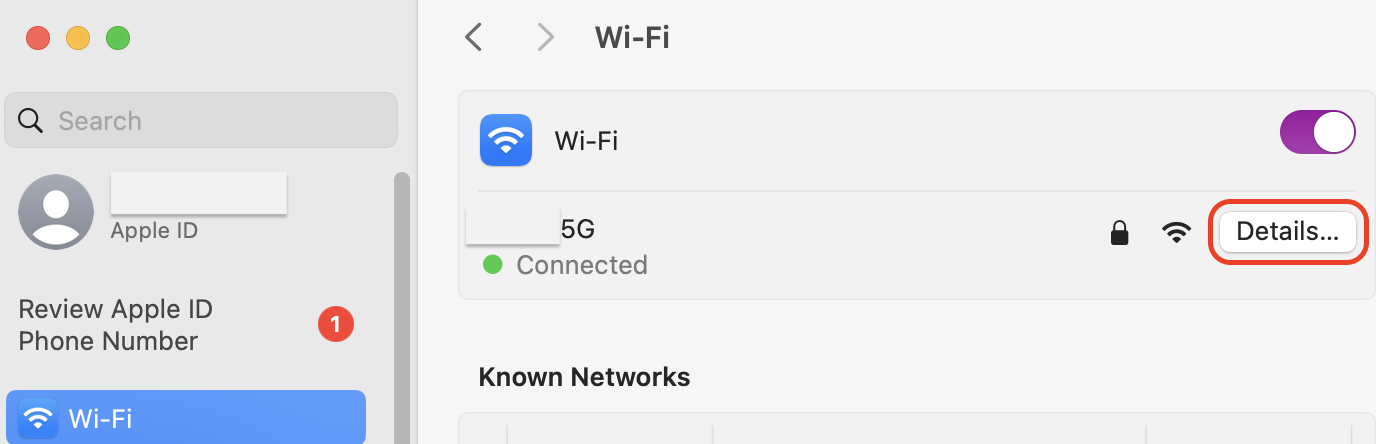 Your default gateway will appear next to Router. See image below.
Note: An IP Address is the internal address of the computer you are on.
Your default gateway will appear next to Router. See image below.
Note: An IP Address is the internal address of the computer you are on.

Finding Your Default Gateway on Linux
Open a terminal session and use the command: ip route | grep default The result should look something similar to this:default via 192.168.0.1 dev wlp58s0 proto dhcp metric 600
Accessing Your Router On Any Operating System
Once you have located the Default Gateway IP address on your Operating System of choice, open any web browser and input the IP address into the Address Bar and press Enter/Return on your keyboard. A box should appear prompting you to enter the router’s username and password. This information can sometimes be found on your router, or in your information guide. If you can’t find it on either, you can search the Internet by typing your router’s make and model and “Default Administrator Password” into any search engine. This will only work if you have not changed the password on your router. If you have changed the default password and forget it, you will need to reset your router.