Generating a Certificate Signing Request (CSR) Using Novell iChain
Please note, as of January 2011, all CSR’s must be generated with a key length of 2048
-
Start the iChain Management http://youriChain:1959/appliance/config.html.
-
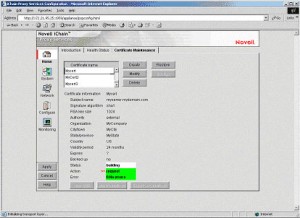
Select the “Home-Certificate Maintenance” panel.
-
Select “Create” to create the CSR. Enter the following fields:
- Certificate name – Any alphanumeric name as long as it is unique.
- Subject name – The DNS name of the site that is to be secured.
- Signature algorithm – can be SHA or MD5.
- RSA Key size – use 1024 bits.
- Select ‘Use external certificate authority.’
- Organization – The company that owns the website. Note: Entering spaces may cause problems.
- City, State or Province code and two character country code.
- Select OK.

-
Select “Apply” to generate the CSR. When it is ready the Status will indicate “CSR in Progress.”
 When you select ‘View the CSR.’ You should see:
 This is your certificate request that you will need during application.
Still have questions? Contact our support team now!
This is your certificate request that you will need during application.
Still have questions? Contact our support team now!


