When enabled, Two-Factor Authentication (2FA) increases your account’s security by requiring a second method of verification before you can login to No-IP.com’s website.
2FA Setup Instructions
Navigate to the Security page. Login to your No-IP account and click your username on the top right of the screen. In this menu, click Security.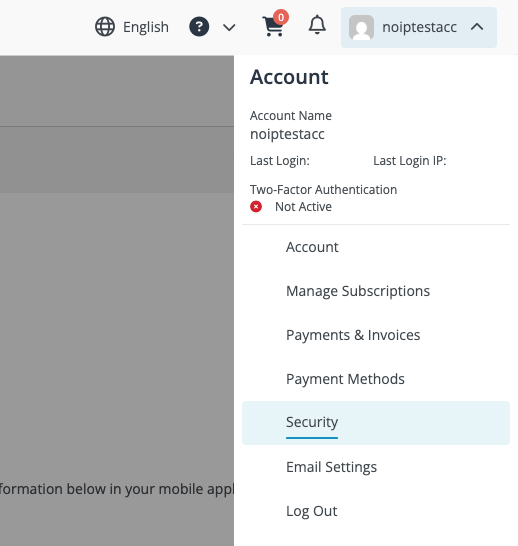 Next, download and install an authentication app. This article will be using Duo. If you’d rather use a different app see our articles for Authy, LastPass or 1Password. They’re all available on the Play Store for Android or the App Store for iOS.
Two-Factor Authentication Setup With Duo
After installation, open the app and select “Setup an Account”. You will be given two options: “Use a QR Code” or “Use activation code”. Select whichever you prefer. We have provided instructions for each method below.QR Code
-
Duo will ask for permission to use your phones camera. Give it permission and then scan the QR Code from the security page in your No-IP account.
-
You can leave the account name as it is or enter a new name and select “Save”.
-
You’ll then be presented with a screen with a 6 digit code. Before doing anything with that code fill in the password field on the no-ip security page with your no-ip account password.
-
Add the 6-digit code from Duo to the security page in your account and click “Enable Two-Factor Authentication”. The code will change every 30 seconds so you’ll need to enter in the 6 digit code on the Security page within that time frame.
-
Two-Factor Authentication is now enabled. Make sure to not navigate away from the page with the backup codes. Skip to the backup codes section in this article.
-
This will take you to an add account screen. Navigate to the bottom of the list and select “Add other account” then select “Use activation code”.
-
Now you need to type in the “Key” located beneath your QR code on the Security page in your No-IP account into Duo.
-
Add an Account name. (Anything Works)
-
You’ll then be presented with a screen with a 6 digit code. Before doing anything with that code fill in the password field on the no-ip security page with your no-ip account password.
-
Add the 6-digit code from Duo to the security page in your account and click “Enable Two-Factor Authentication”. The code will change every 30 seconds so you’ll need to enter in the 6 digit code on the Security page within that time frame.
-
Two-Factor Authentication is now enabled. Make sure to not navigate away from the page with the backup codes and proceed to the backup codes section in this article.