The purpose of this guide is to provide you with general instructions for configuring Plus Managed DNS. With Plus, you can manage the DNS and use up to 5 DDNS clients for your own custom domain or sub-domains created against it. Plus Managed DNS requires your own custom domain. If you do not own a custom domain and would like to purchase one, please visit our domain registration page.
Zone Management
You must create a zone before creating DNS records or configuring Dynamic DNS on a custom domain. Zones are a space for DNS management of a domain name, in which DNS records for that domain can be created and managed.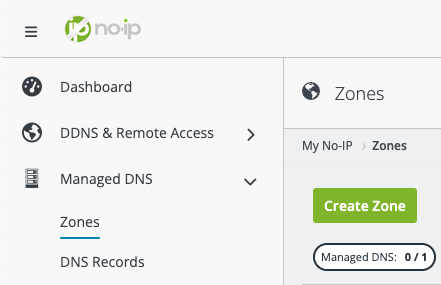 The following options should appear in the page:
 You’ll want to enter in your domain name under the Zone Name field and click the Create button afterwards. *Please note that this does not register a domain name. You can only register domains on our domain registration page.
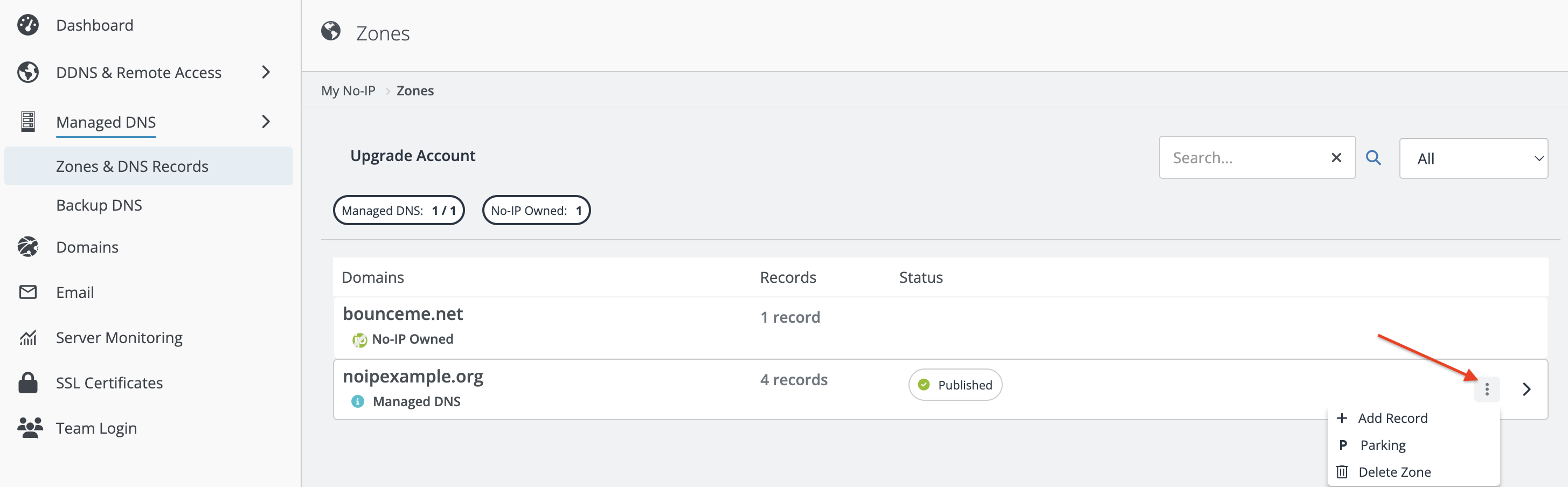 Select Delete Zone. You can now create a zone for a different domain.
Nameservers
The next step is to change the nameservers for your domain. To set the nameservers with No-IP:-
Click “Actions” to the right of your domain then “Configure“.
-
At the bottom of the page you will see the nameservers that are currently set. They should match the No-IP nameserver list provided below. If they do not, click the nameserver set dropdown and select “No-IP Plus Defaults“.
-
Confirm your changes by clicking on “Set Nameservers“
-
Login to No-IP.
-
Click “Managed DNS“ on the left side of the page.
-
Click “DNS Records“.
-
Click the “Add Record” button to the right of the desired domain’s zone.
-
Select your Hostname Type.
-
Type in your hostname in the first field. Your domain should already fill the field next to it.
-
Enter the IP Address/Target (Your current network’s IP address will be used automatically).
-
You can select the available Time to Live or keep it set to auto. Most records should automatically set to the fastest available TTL.
-
Optional: You can check Enable Dynamic DNS to create the hostname with a DDNS Key. You can create a hostname without it but it is recommend to set up Dynamic DNS.
-
Click “Create“.
-
Login to No-IP.
-
Click “Managed DNS” on the left side of the page.
-
Click “DNS Records” and then on the desired domain/hostname you wish to modify.
-
Login to No-IP.
-
Click “Managed DNS” on the left side of the page.
-
Click “DNS Records” and then the “Add Record” button to the right of your domain.
-
Under the Type field you can scroll and select the following options available: TXT, SPF, DKIM, SRV, IPv6, CAA (most record types are added as TXT).