The purpose of this guide is to provide you with general instructions for configuring Pro Dynamic DNS.
With Pro, you can use No-IP provided hostnames for DDNS or your own custom domain. If you do not own a custom domain and would like to purchase one, please visit our domain registration page.
Setup with a custom domain is going to take a few extra steps. You will need to create a zone and point your domain to our nameservers. If you are using Pro with a No-IP domain, you can skip to the Managing DNS Records section.
Creating a Zone
You must create a zone before creating DNS records, or configuring Dynamic DNS on a custom domain.
To create a zone:
- Login to No-IP and navigate to the Zones & DNS Records page.
- Click on “Create Zone” and enter your domain name.
If you have reached your zone limit, you can upgrade the amount of available zones. To upgrade, check out our product page.
To remove a zone:
- Click on the more options icon.
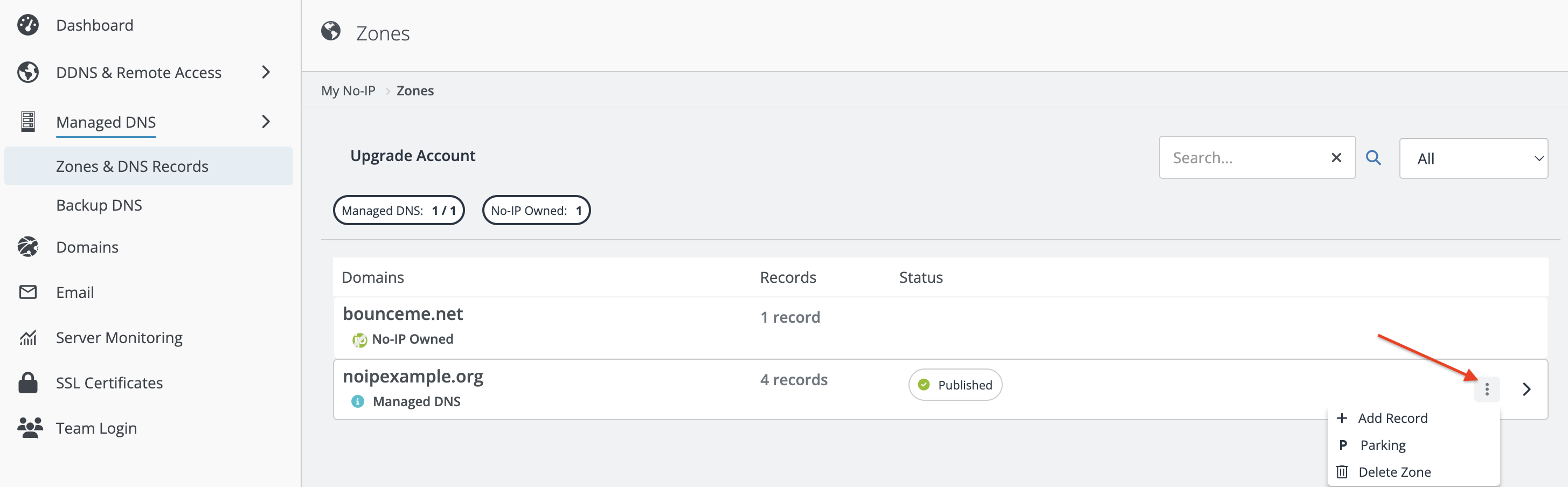
- Select Delete Zone. You can now create a zone for a different domain.
Nameservers
The next step is to change the nameservers for your domain.
To set the nameservers with No-IP:
- Login to No-IP and navigate to the Domain Management page.
- Click “Actions” then “Configure“.
- At the bottom of the page you will see the nameservers that are currently set. They should match the No-IP nameserver list provided below. If they do not, click the nameserver set dropdown and select “No-IP Plus Defaults“.
- Confirm your changes by clicking on “Set Nameservers“
No-IP Nameservers:
NS1.NO-IP.COM
NS2.NO-IP.COM
NS3.NO-IP.COM
NS4.NO-IP.COM
If your domain is registered elsewhere, you will need to change the nameserver settings with your domain registrar.
Managing DNS Records
To create new DNS records:
- Login to No-IP
- Click DDNS & Remote Access on the left side of the page
- Click DNS Records
- Click Add Record for your domain
- Select your host Type and add a name for the host.
- Enter the IP Address/Target (Your current network’s IP address will be prefilled)
- Click “Add Hostname”
To modify an existing DNS record:
- Login to No-IP
- Click DDNS & Remote Access on the left side of the page
- Click DNS Records
- Click the record you want to edit.
Setting Up DDNS
To setup DDNS you need to create a hostname and configure an update client to send us your new IP address each time it changes. For full instructions, check out our guide here. If you do not have a device that supports No-IP, you can download our software on Windows, Mac, or Linux instead. Lastly, port forwarding is required to resolve to a specific device like a camera, DVR, web server, etc.
If you need additional assistance, contact our support team.
Configuring an SSL/TLS Certificate
Pro Dynamic DNS includes a number of included SSL/TLS Certificates at no extra cost. You can configure them from the SSL Certificates page within your account.
Configuring an SSL requires a server or another device that allows the installation of an SSL Certificate. For a step-by-step walkthrough, see our SSL Guide.