

Article Summary
- On the No-IP website, click 'Sign In' at the upper right and enter your username or email and password.
- After login you are asked for a verification code sent to your email, which is the default for all accounts.
- If Two Factor Authentication is enabled, enter the 6 digit passcode from your authentication app instead.
- If you signed up with Google or Microsoft Single Sign On, use the corresponding buttons to sign in.
- On mobile, click the user icon at the upper right of No-IP.com and select 'Sign In'.
Login from Web Browser
To login to your No-IP account, please visit No-IP.com and click Sign In found at the upper right corner of our website on the white menu bar.

The page should change with a couple different options on how to sign in.
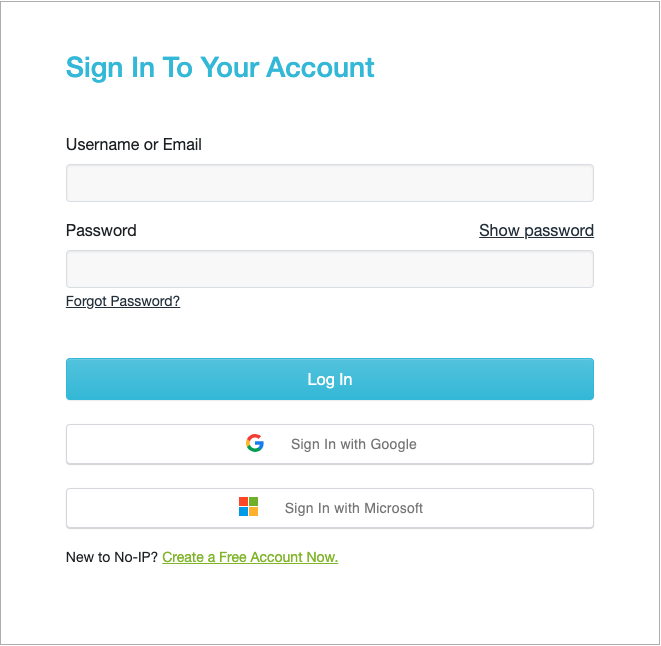
Please enter your username or email associated with your account (either option should be accept), along with your password. Once you select Log in, you’ll be prompted to verify your account with the verification code sent to your email. All accounts are automatically set to send verification codes to your email as a standard security measure.

If you had enabled the Two Factor Authentication feature, you will see a different prompt. You will need to find the 6 digit passcode provided by the authentication application you chose to set up 2FA with. If you wish to enable the feature instead of receiving a code through your email, please review this guide.
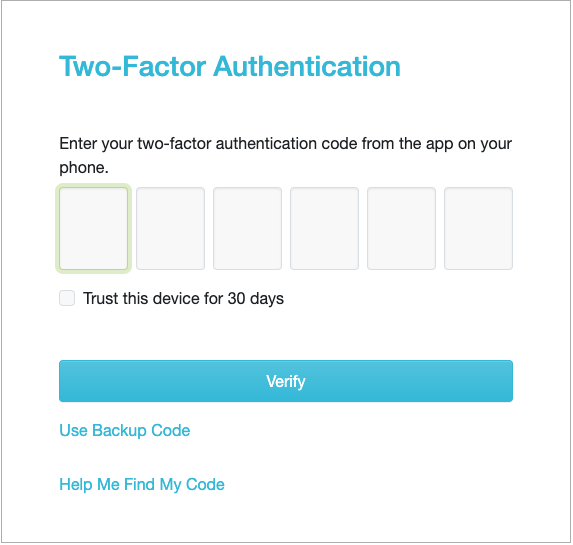
If you created your account using Google or Microsoft Single Sign on, please use these paths instead:
Sign in with Google
Select the button titled Sign in with Google with Google’s icon on it. If you are using the Google Chrome web browser, this should bring up the accounts already signed into your browser. You can select one and it should log you in. Otherwise, you can follow the prompt to enter in your email and password for your Google account and that should log you into your No-IP account.
Sign in with Microsoft
Select the button titled Sign in with Microsoft with Microsoft’s icon on it. This should bring you to Microsofts login page where you can follow the prompts to enter in your Microsoft email and password. That should get you logged into your No-IP account.
Login from Mobile
To log in to your No-IP account, visit No-IP.com and click the user icon at the upper right.
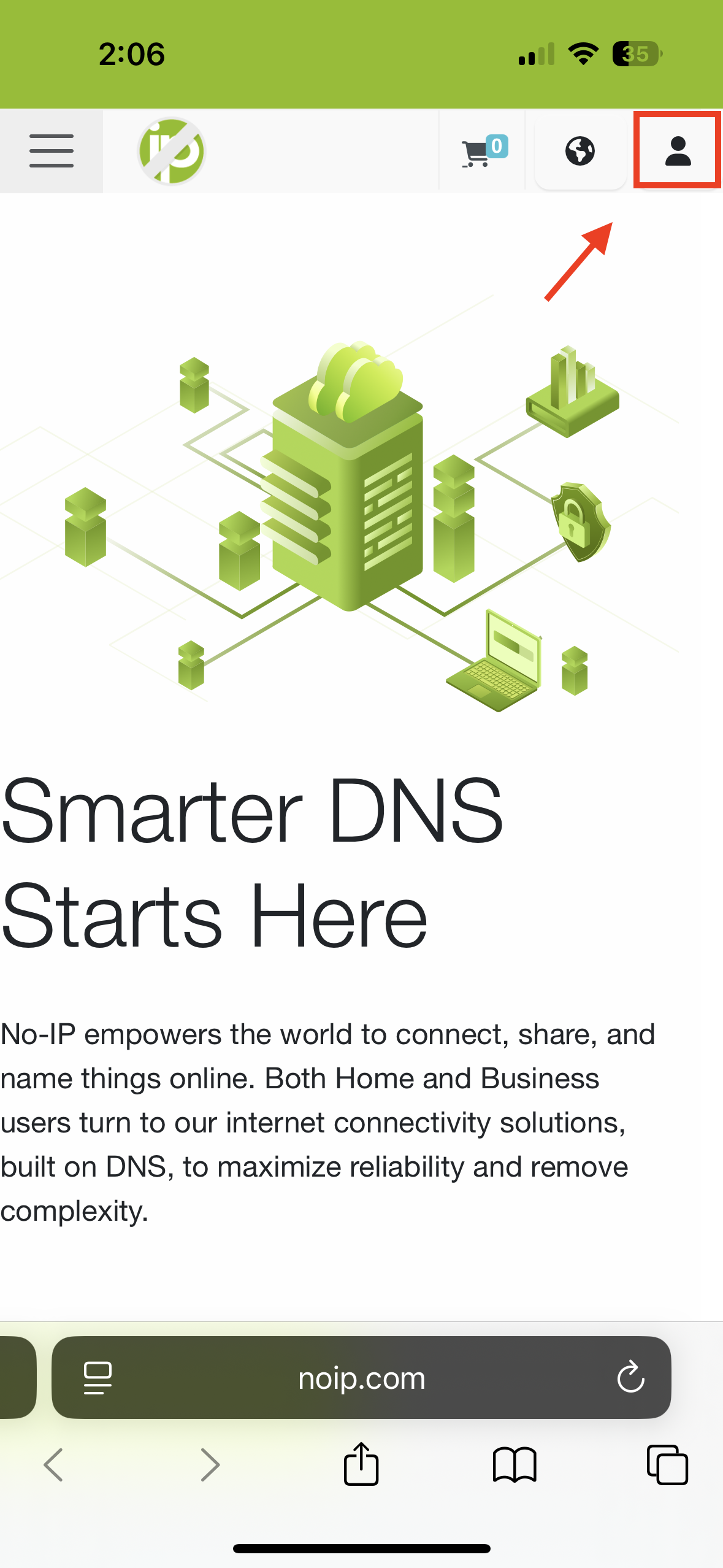
This will drop down a menu enabling you to select “Sign In”. Click the Sign In option.
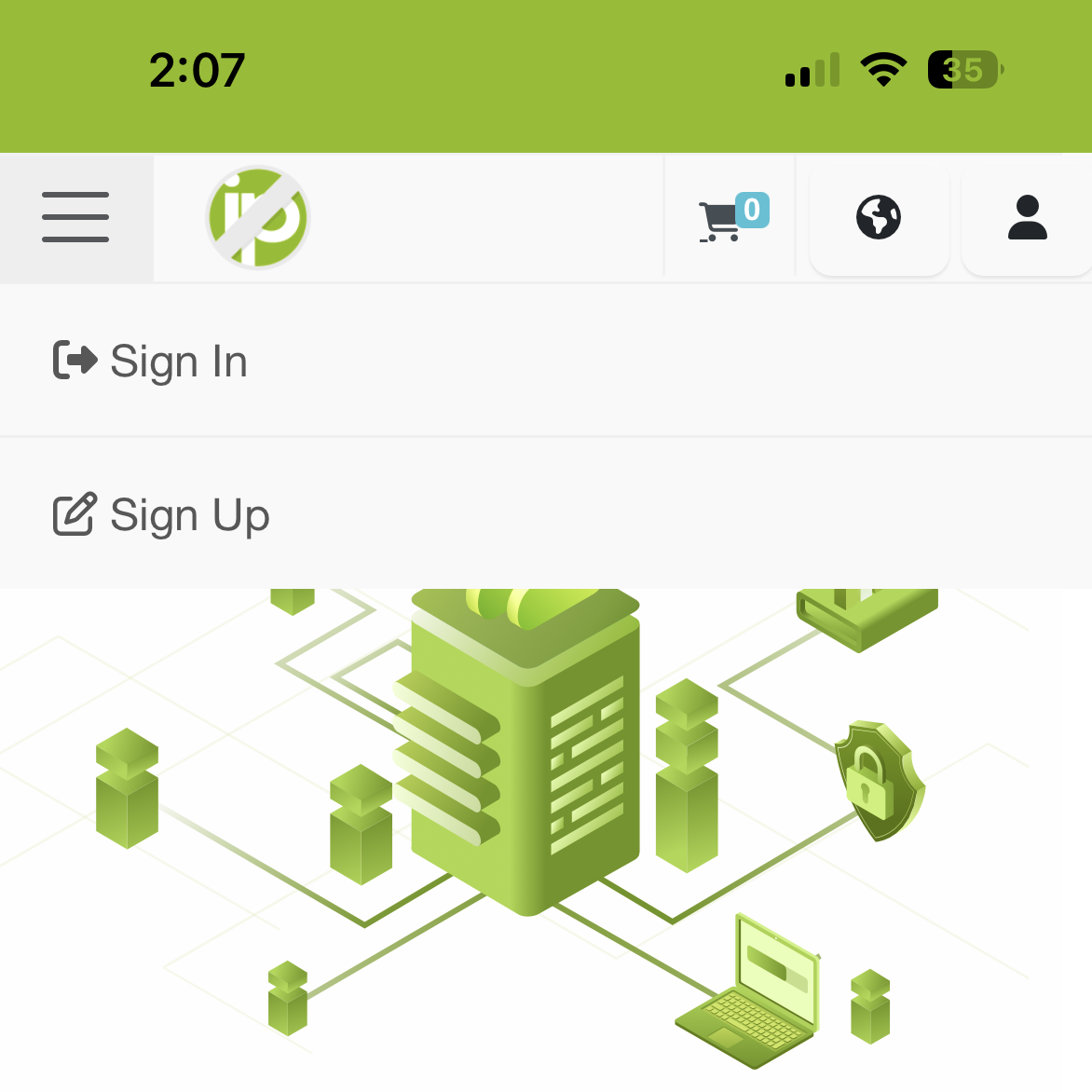
Enter your username or email associated with your account, along with your password.
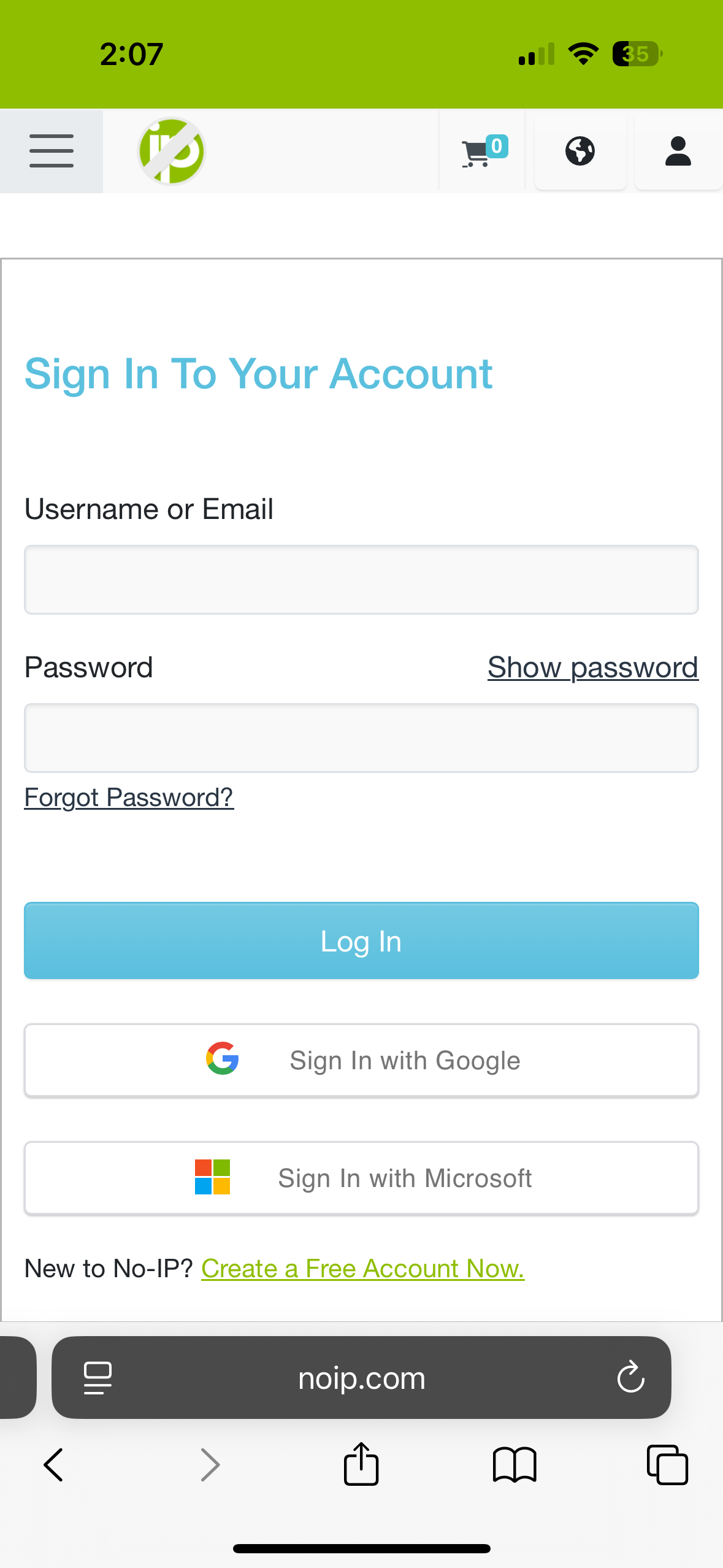
Once you select Log in, you’ll be prompted to verify your account with the verification code sent to your email. If you had enabled the Two Factor Authentication feature, you will need to find the 6 digit passcode provided by the authentication application you chose to use. For logging in with Google or Microsoft, select the corresponding buttons and follow the prompts.