Generating a Certificate Signing Request (CSR) using Hsphere
- Step 1
Click SSL on your control panel home page.
- Step 2
Enable SSL for the domain in the list.
- Step 3
Click the link at the top of the form that appears.
- Step 4
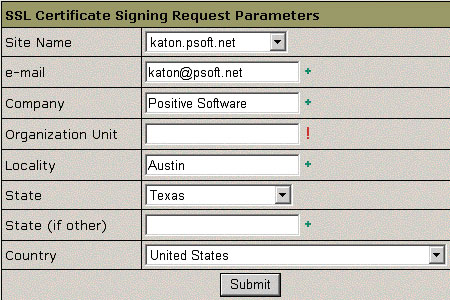
On the page that appears, confirm your details by clicking the “Submit” button.

- Step 5
This data will be used to generate the certificate. Don’t make changes to the data if you are not sure about the purpose of these changes.
- Step 6
Follow the instructions that appear at the top of the next page.
- Step 7
SSL Certificate Signing request. It includes the details that you submitted on the previous step. Use this request to get an SSL certificate from Network Solutions.
- Step 8
SSL Server Private Key. This is the secret key to decrypt messages from your visitors. It must be stored in a secure place where it is inaccessible to others. Don’t lose this key, you will need it if you get a permanent certificate.
- Step 9
Temporary SSL Certificate. It validates your identity and confirms the public key to assure the visitors that they are communicating with your server, not any other party.
- Step 10
Copy the signing request and private key for later use.